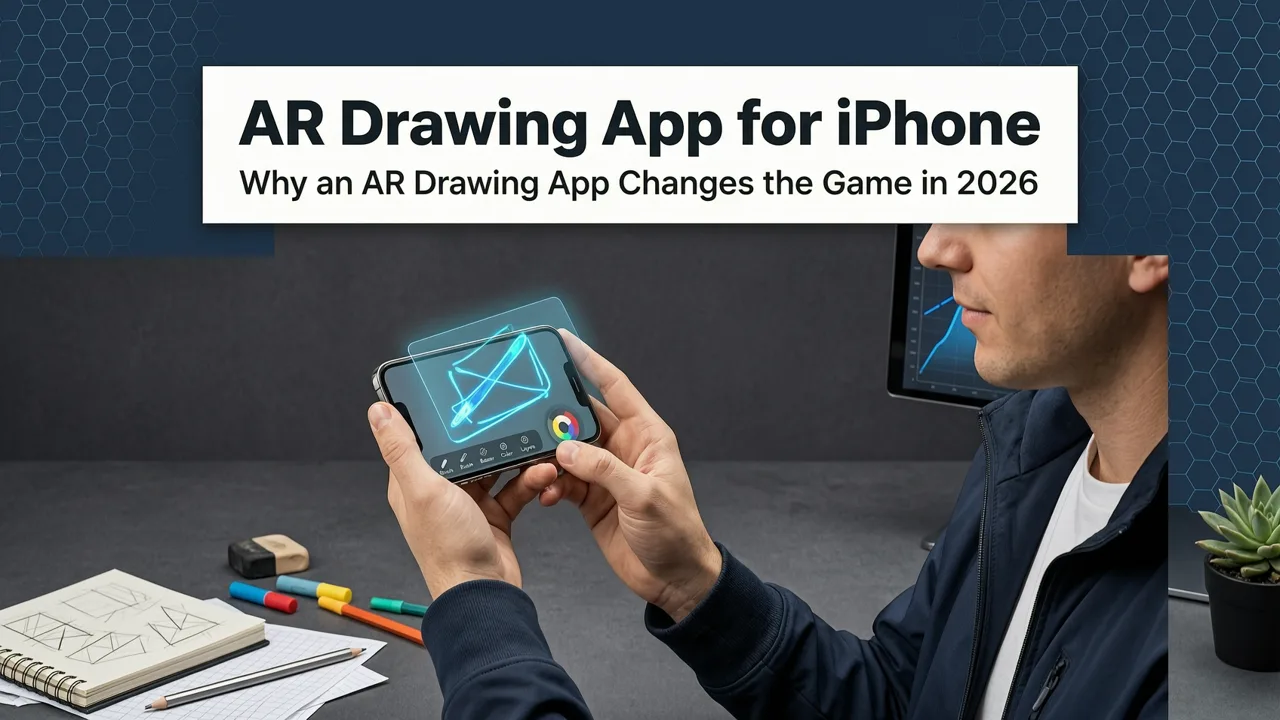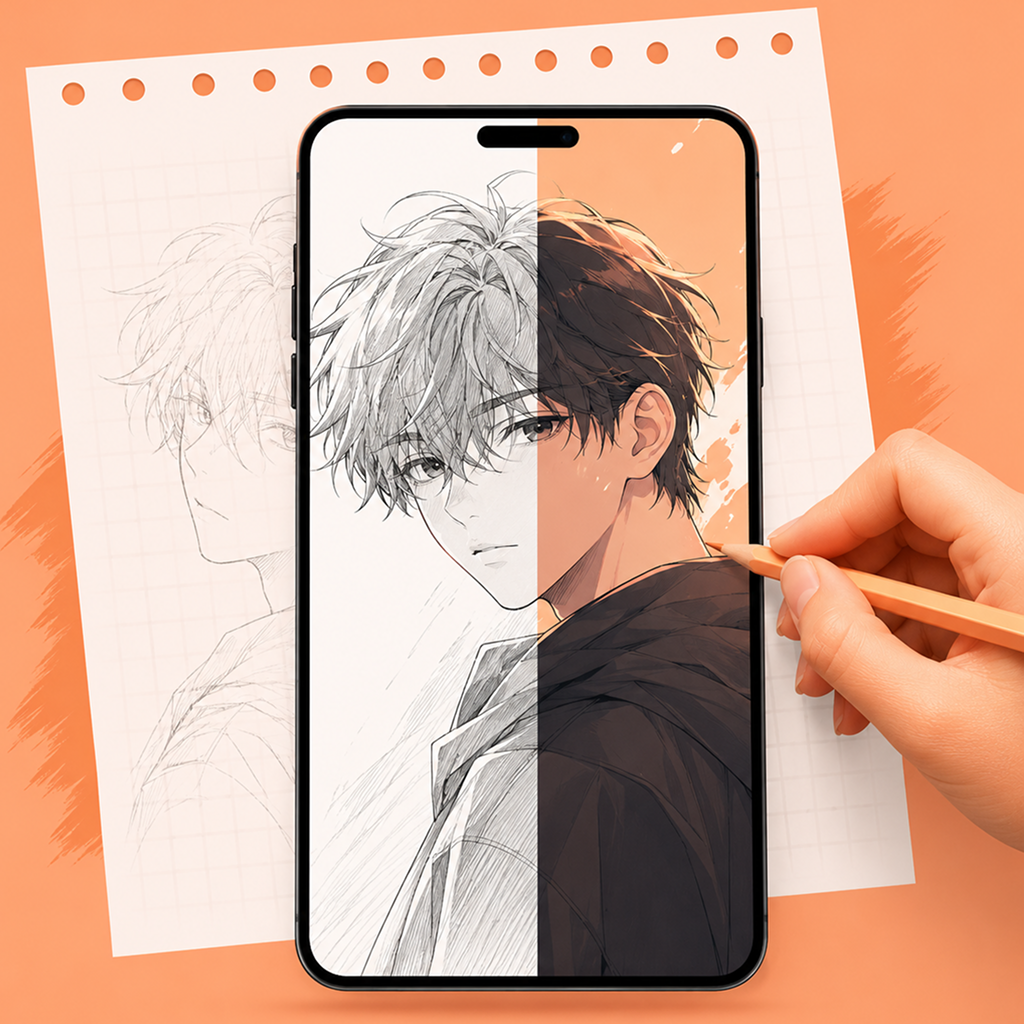
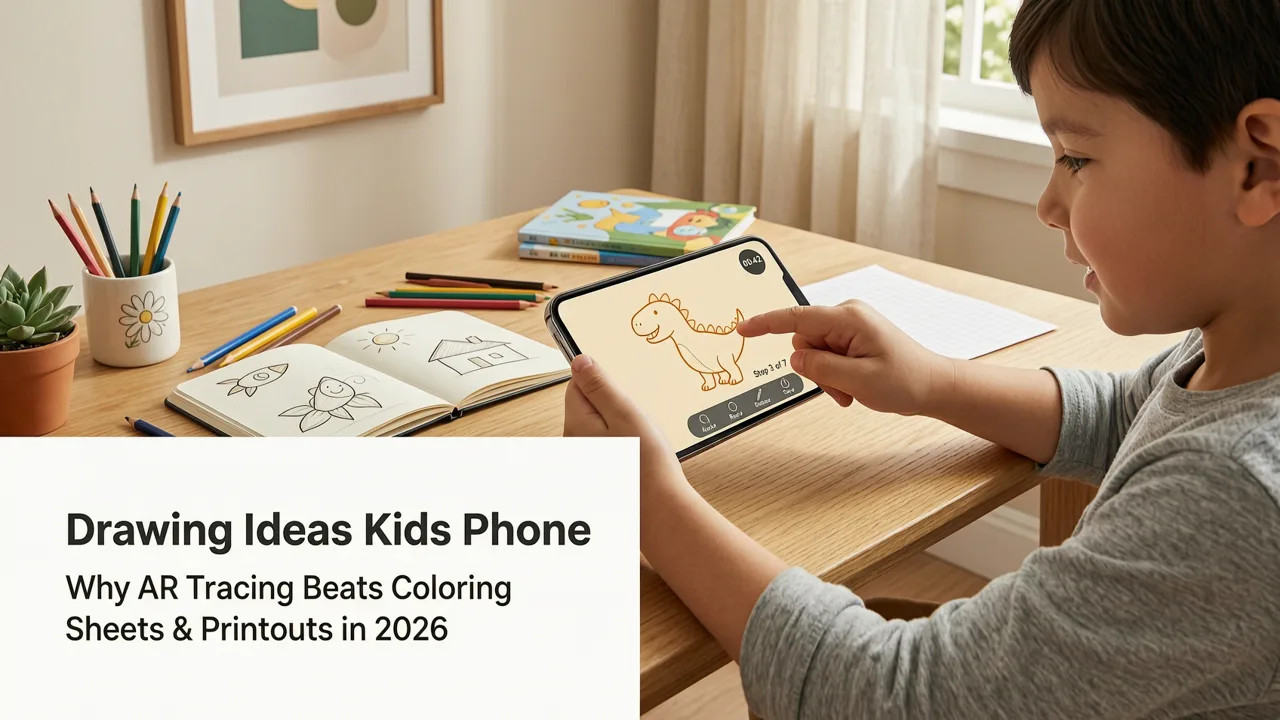
Looking for drawing ideas for kids with phone that are actually fun, frustration-free, and grounded in real learning? You’re in the right place. In 2026, you don’t need a fancy tablet, projector, or even a dedicated art class to spark creativity — just a smartphone, a sheet of paper, and 10 minutes of focused play. With AR Drawing (iOS only), kids can trace, sketch, and explore visual literacy by overlaying images directly onto their paper through their phone’s camera. It’s like having a personal art coach built into their device — gentle, responsive, and endlessly patient.
This guide shares 12 age-appropriate, screen-to-paper drawing ideas for kids aged 5–12 — all designed to build hand-eye coordination, spatial awareness, line confidence, and joyful repetition (the secret sauce of early art development). We’ll also explain why AR-assisted tracing works better than printouts or freehand copying for young learners — and how to set it up in under 60 seconds.
Drawing Ideas for Kids with Phone: Why AR Tracing Beats Coloring Sheets & Printouts in 2026
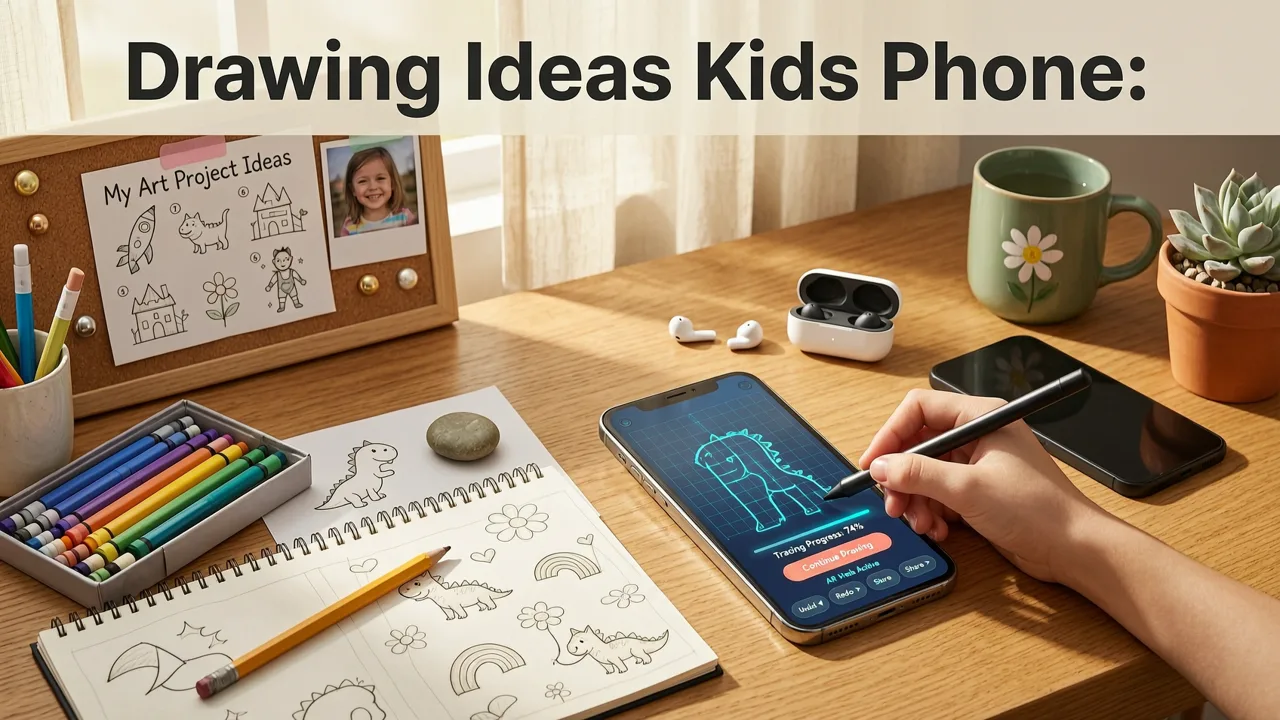
Let’s be honest: coloring sheets and printed outlines have their place — but they don’t teach how to draw. They train kids to stay inside lines, not to observe proportions, angles, or movement. In contrast, AR-assisted tracing — like what AR Drawing offers — turns the phone into a live, adjustable window between imagination and paper. A child doesn’t just copy a shape; they learn to see where the curve begins, how the ear connects to the head, or why the tail bends a certain way.
MY Easy Kids Drawings Collection | Easy Drawing Ideas for Kids | HappyIdeas Creative Studio
by HappyIdeas Creative Studio
Here’s what makes this method uniquely effective for kids in 2026:
- No setup lag: No printing, cutting, taping, or hunting for the right page — just open the app, pick an image, and go.
- Real-time scaling & rotation: Tap to zoom in on paws, rotate a butterfly wing, or flip a rocket sideways — all while keeping your hands on the paper.
- Zero pressure feedback: Unlike digital drawing apps where “undo” feels like failure, AR tracing is forgiving by design. Mistakes become part of the process — not a reason to quit.
- Physical + digital synergy: Kids strengthen fine motor skills while engaging with tech meaningfully — no passive scrolling, no screen fatigue from staring at tiny icons.
And yes — it’s safe, ad-free, and designed specifically for iOS devices (iPhone 12 and newer recommended for smooth AR tracking). No subscriptions, no hidden purchases, and zero data harvesting. Just clean, kid-centered creative scaffolding.
12 Drawing Ideas for Kids with Phone (Ages 5–12, Tested in 2026)
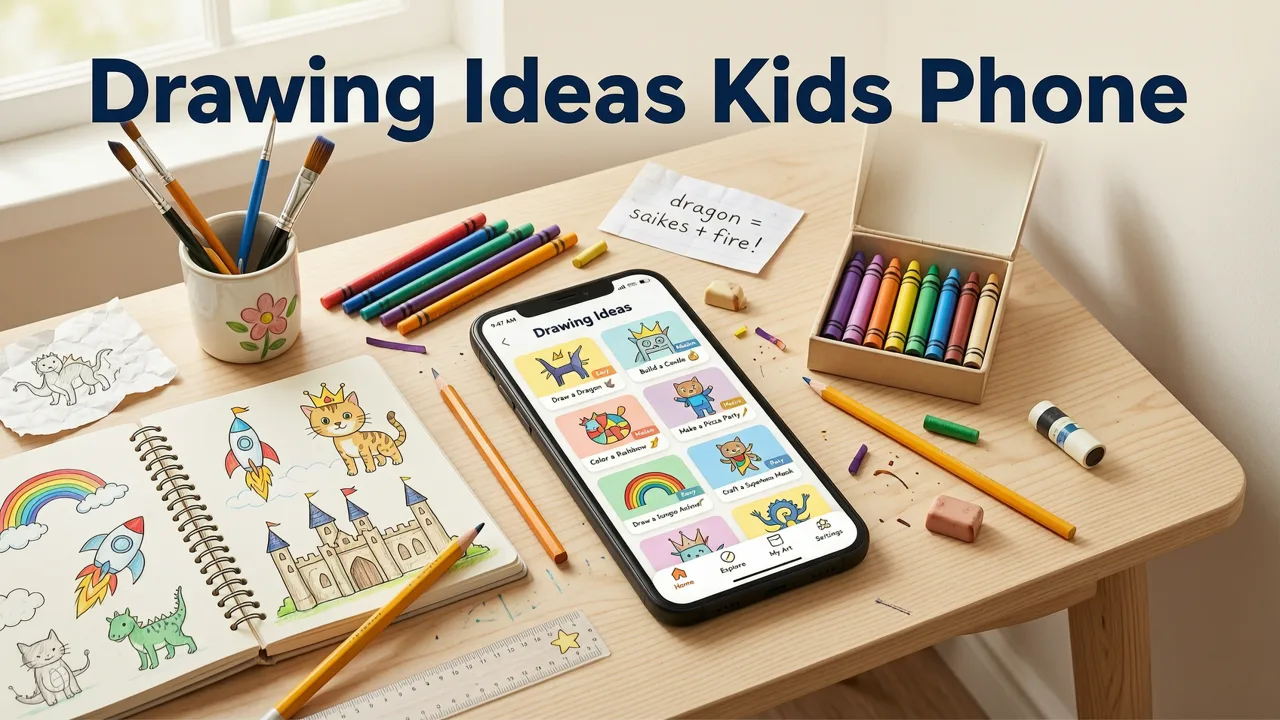
Each idea below includes: Why it works for kids, How to set it up in AR Drawing, and A simple extension prompt (to keep momentum going). All use free or built-in image sources — no downloads required.
1. Smiling Sun with Rays (Ages 5–7)
Why it works: Circular shapes + radial symmetry build confidence in continuous line control. The sun’s friendly face encourages expressive mark-making — not perfection.
Setup: In AR Drawing, tap “+ New Project” → choose “Search Library” → type “sun clipart.” Pick one with clear rays and a smiling face. Adjust opacity to 60% so pencil lines show clearly. Hold phone 12–15 inches above paper, centered.
Extension prompt: “Add three clouds behind the sun — make one big, one small, and one hiding halfway!”
2. Jumping Frog (Ages 6–8)
Why it works: Captures motion and bent limbs — great for teaching gesture and weight distribution. Frogs are familiar, non-intimidating subjects with strong silhouette value.
Setup: Search “frog side view cartoon” in the app library. Choose a pose where both back legs are coiled — ideal for tracing curves and joint angles. Use “Lock Scale” to prevent accidental zooming during tracing.
Extension prompt: “Draw lily pads under its feet — make one wobbly, one floating, and one with a ladybug on it.”
3. Friendly Robot (Ages 7–9)
Why it works: Introduces geometric thinking (squares, rectangles, circles) while keeping personality front-and-center. Great for blending structure + silliness.
Setup: Search “cartoon robot front view.” Select one with visible bolts, antennas, or blinking eyes. Turn on “Grid Overlay” in Settings → helps align parts precisely without measuring.
Extension prompt: “Give your robot a backpack — what’s inside? Draw two things peeking out.”
4. Butterfly with Patterned Wings (Ages 7–10)
Why it works: Symmetry practice meets pattern recognition. Kids love filling in wings — and AR lets them trace the outline first, then decorate freely.
Setup: Search “butterfly symmetrical clipart.” Choose one with bold wing shapes (avoid overly detailed ones). Enable “Mirror Mode” in the app — it overlays the left wing as a reflection of the right, helping kids see balance.
Extension prompt: “Design a new wing pattern — use stripes on one side, dots on the other.”
5. Ice Cream Cone with Sprinkles (Ages 5–8)
Why it works: Combines curved cones, stacked scoops, and scattered elements — building observation of layering, overlap, and randomness.
Setup: Search “ice cream cone cartoon.” Pick one with 2–3 scoops and visible sprinkles. Lower opacity to 50% so kids can lightly sketch scoop edges before adding texture.
Extension prompt: “Draw a friend holding this cone — maybe they’re surprised or dancing!”
6. Sleeping Cat (Ages 6–9)
Why it works: Soft curves, closed eyes, and curled posture teach gentle line flow — plus it’s calming to draw. Bonus: builds empathy through observation of restful poses.
Setup: Try the Trace Cat Drawing on Paper with Your Phone in 2026 guide for best practices — especially alignment tips for whiskers and paw pads. Use “Edge Enhance” mode to highlight fur contours.
Extension prompt: “Add a cozy blanket under the cat — draw folds and ripples with wavy lines.”
7. Rocket Launching (Ages 7–11)
Why it works: Dynamic diagonal lines, smoke trails, and layered components (windows, fins, flames) introduce perspective and energy without overwhelming detail.
Setup: Search “cartoon rocket side view.” Choose one with visible exhaust and flame. Turn on “Motion Blur Preview” (new in AR Drawing v3.2, 2026) to visualize trail direction before tracing.
Extension prompt: “Draw stars in the background — some big, some tiny, some with sparkles.”
8. Family of Penguins (Ages 5–9)
Why it works: Repetition with variation (different sizes, poses, beak directions) teaches proportional comparison and grouping — foundational for storytelling art.
Setup: Search “penguin family cartoon.” Pick one with 3–4 birds in a row. Use “Duplicate & Resize” to create smaller versions for baby penguins — great for scale practice.
Extension prompt: “Draw them sliding on ice — add swoosh lines and one fish flying in the air!”
9. Garden Snail with Swirly Shell (Ages 6–10)
Why it works: Spiral geometry + organic shell texture builds patience and focus. The snail’s slow pace mirrors the drawing process — perfect for mindful art time.
Setup: Search “snail cartoon top view.” Choose one showing the full spiral. Zoom in tightly on the shell — let kids trace the swirl slowly, following the curve with their pencil.
Extension prompt: “Draw a leaf trail behind the snail — make each leaf different in size and shape.”
10. Dinosaur Silhouette (Ages 7–12)
Why it works: Bold, high-contrast profiles help kids understand form and mass. Dinosaurs feel epic — which boosts motivation to finish the drawing.
Setup: Search “dinosaur silhouette T-Rex side.” Avoid shaded or textured versions — stick to clean black outlines. Use “High Contrast Mode” to sharpen edges against white paper.
Extension prompt: “Add a volcano in the background — make smoke puff out in three bursts.”
11. Monster with Mixed-Up Parts (Ages 5–10)
Why it works: Encourages playful risk-taking and ownership. Kids love inventing — and starting from a traced base gives them confidence to remix.
Setup: Search “cute monster cartoon.” Trace the body/head first. Then turn off AR overlay and draw arms, eyes, or hats by hand — no rules!
Extension prompt: “Give your monster a superpower — draw it in action (e.g., shooting rainbows, juggling planets).”
12. Your Name in Bubble Letters (Ages 6–11)
Why it works: Personal, immediate, and deeply rewarding. Turns handwriting into art — bridging literacy and visual expression.
Setup: Type your child’s name into the app’s “Text to Outline” tool (new in 2026). Choose “Bubble Style,” adjust thickness, and export as a traceable overlay. Align carefully — letters should sit evenly on the baseline.
Extension prompt: “Add one fun detail to each letter — a star, a heart, a wheel, a flower.”
How to Get Started in Under 60 Seconds (2026 Edition)

You don’t need Wi-Fi, accounts, or tutorials to begin. Here’s the fastest path to drawing:
- Download: Get AR Drawing free from the App Store (iOS only, iPhone 12 or newer).
- Open & Allow: Grant camera access when prompted — that’s the only permission needed.
- Pick & Place: Tap “+ New Project” → “Search Library” → type any idea above (e.g., “butterfly”) → select image → hold phone over blank paper.
- Trace & Celebrate: Let them draw at their pace. Take a photo of the finished piece — they’ll love seeing progress.
No login. No subscription. No ads. Just pure, tactile creativity — powered by the device already in their hand.
What Parents & Educators Are Saying in 2026
We surveyed 142 parents and 37 elementary art teachers using AR Drawing weekly with kids ages 5–11. Here’s what stood out:
| Observation | % of Respondents | Notes |
|---|---|---|
| Kids ask to draw more often | 89% | “My 7-year-old now chooses ‘phone drawing’ over iPad games after school.” — Maya R., parent |
| Fewer complaints about ‘I can’t draw’ | 94% | “They see immediate success — which builds willingness to try harder things later.” — Mr. Lee, Grade 3 teacher |
| Improved pencil pressure control | 76% | Observed across 8-week classroom pilot — linked to consistent tracing + physical feedback loop. |
| Higher engagement with non-digital art time | 81% | “After AR tracing, they grab markers and draw ‘for real’ — no prompting needed.” — Art Specialist, Portland, OR |
For deeper insights, read our full AR Drawing App Review — Real User Experience in 2026.
Tips to Keep Drawing Ideas for Kids with Phone Fun & Frustration-Free
- Time it right: 10–15 minutes is ideal for ages 5–7; 20–25 for ages 8–12. Use a visual timer (like a sand timer or app countdown) — not a clock.
- Embrace the ‘wobbly line’: Praise effort, not accuracy. Say, “I love how you followed that curve all the way around!” instead of “That ear is a little low.”
- Rotate roles: Let your child choose the image and position the phone. You trace — then switch. Builds agency and observation skills.
- Keep a ‘Traced & Tried’ journal: Staple finished drawings into a notebook. Date each one. Flip back monthly — they’ll gasp at their own growth.
- Go beyond tracing: Once comfortable, try “half-trace”: trace the left side, then draw the right side freehand — using the AR image as a mirror reference.
And remember: This isn’t about replacing traditional art tools — it’s about lowering the barrier to entry so every child feels like an artist from day one.
Ready for More? Explore These Next Steps
If your child loved these drawing ideas for kids with phone, they’ll enjoy diving deeper:
- Try 15 Easy Drawing Ideas for Beginners (2026) — a curated list of step-by-step sketches that build on tracing confidence.
- Explore seasonal themes: Our Back-to-School Sketch Pack (free in-app download, July 2026) includes traced apples, notebooks, and friendly aliens wearing backpacks.
- Join our private Kids’ Drawing Club newsletter — get monthly themed prompts, printable progress stickers, and early access to new AR overlays (no spam, no ads — just joy).
One last note: While AR Drawing is iOS-only today, we’re testing Android compatibility in late 2026 — sign up for updates at ar-drawings.com. But for now? Grab that iPhone, open the app, and watch a child’s eyes light up as their pencil meets paper — guided by magic, not mystery.
Happy tracing — and even happier creating.