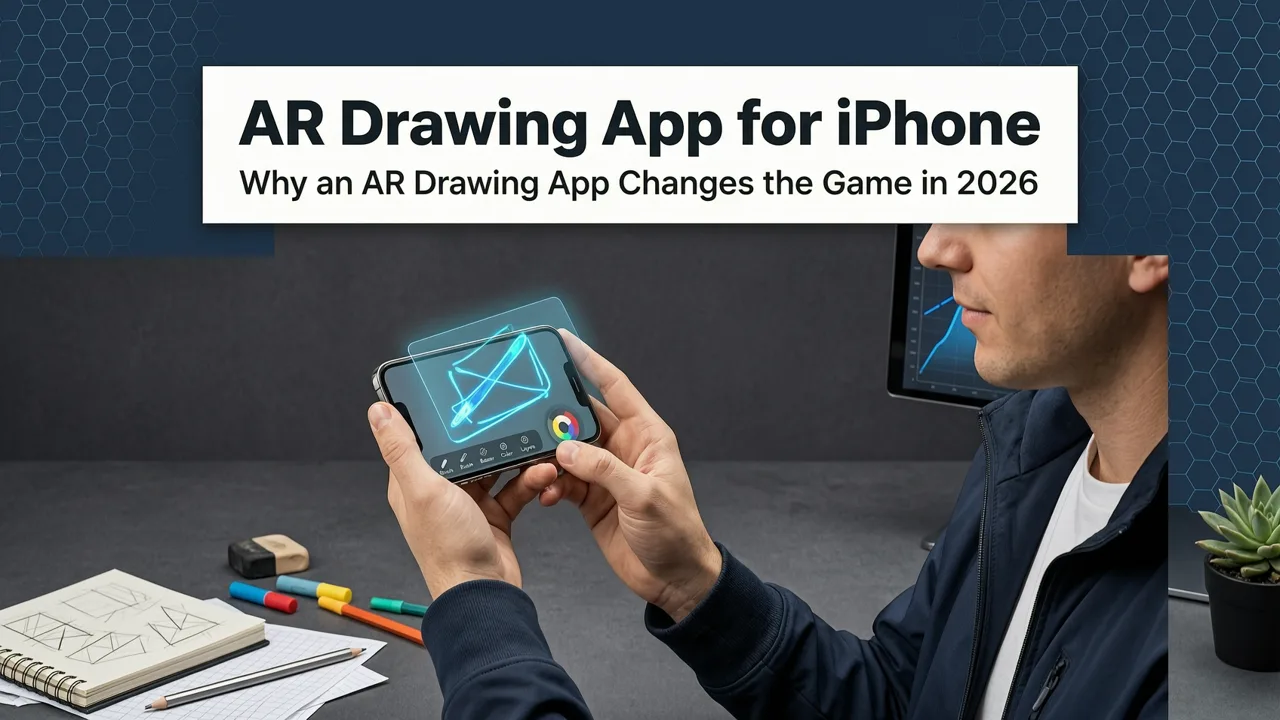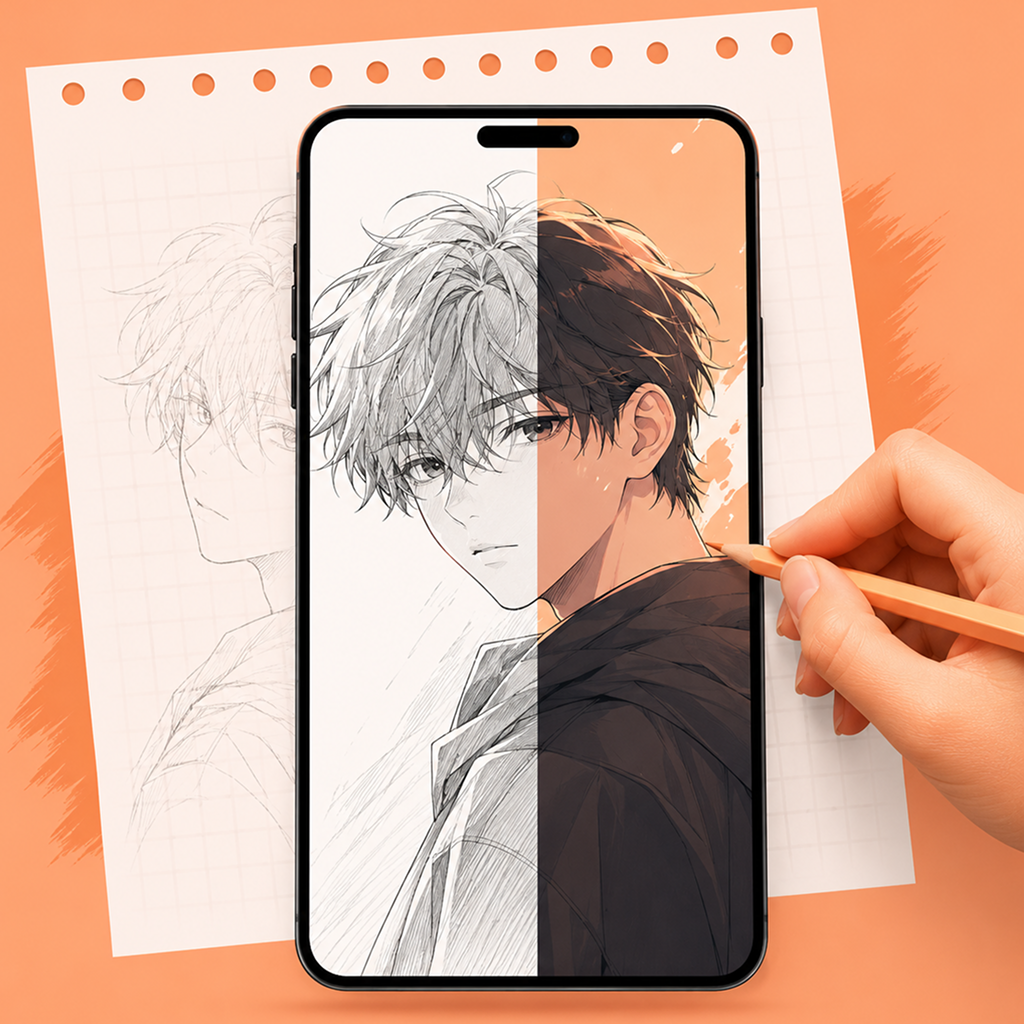
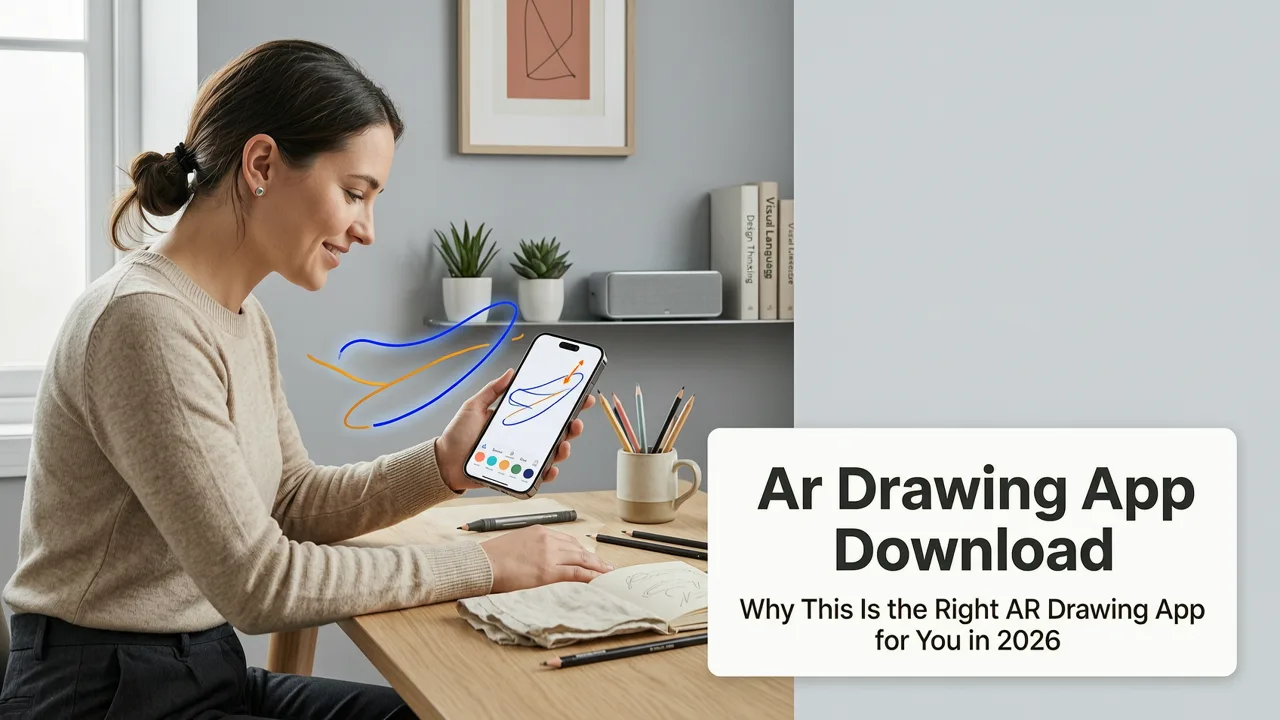
Want to download an AR drawing app that actually helps you learn to draw—not just copy shapes? In 2026, AR Drawing is the only iOS app purpose-built to turn your iPhone into a smart, portable tracing guide that overlays images onto real paper using live camera-based augmented reality. No projectors. No lightboxes. No subscription fees. Just open the app, align your image, and start tracing with confidence.
Why This Is the Right AR Drawing App Download for You in 2026
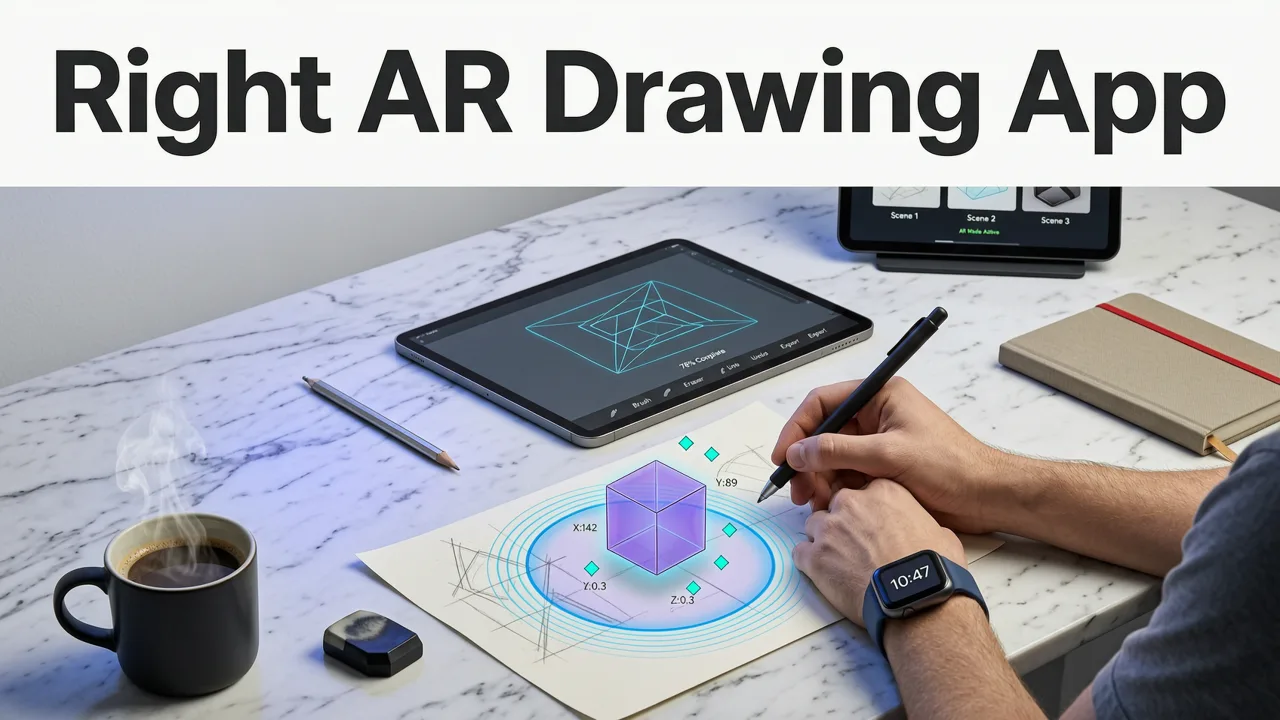
If you’ve searched for an AR drawing app download, you’ve probably seen dozens of sketching tools—many labeled “AR” but offering little more than static filters or shaky camera overlays. AR Drawing stands apart because it’s engineered for one thing: helping beginners and hobbyists draw over real paper with precision. It’s not a digital canvas—it’s a real-world learning partner.
Released in late 2024 and refined through 2025–2026 user feedback, the current version (v3.2.1, updated July 2026) delivers smoother alignment, faster image import, improved low-light stability, and native support for Apple’s latest Vision Pro-compatible AR frameworks—even if you’re using an iPhone 14 or newer. And yes: it’s still 100% free to download and use with no paywalls, ads, or hidden feature locks.
Drawing with Augmented Reality: AMAZING or AWFUL?? - SketchAR Review *Brutally Honest*
by Jazza
What Makes AR Drawing Different From Other Tracing Apps?
Most so-called “tracing apps” are either:
- Digital-only sketch pads (e.g., Procreate-style layers with no real-world paper integration), or
- Generic camera overlays with poor edge detection, no perspective correction, and zero guidance for hand-eye coordination.
AR Drawing does neither. Instead, it uses real-time plane detection, adaptive brightness compensation, and gesture-assisted scaling to anchor your reference image firmly to the physical surface of your sketchbook—so when you move your phone slightly, the overlay stays locked in place. That stability is what makes tracing feel like practice—not frustration.
How to Complete Your AR Drawing App Download (iOS Only, 2026)
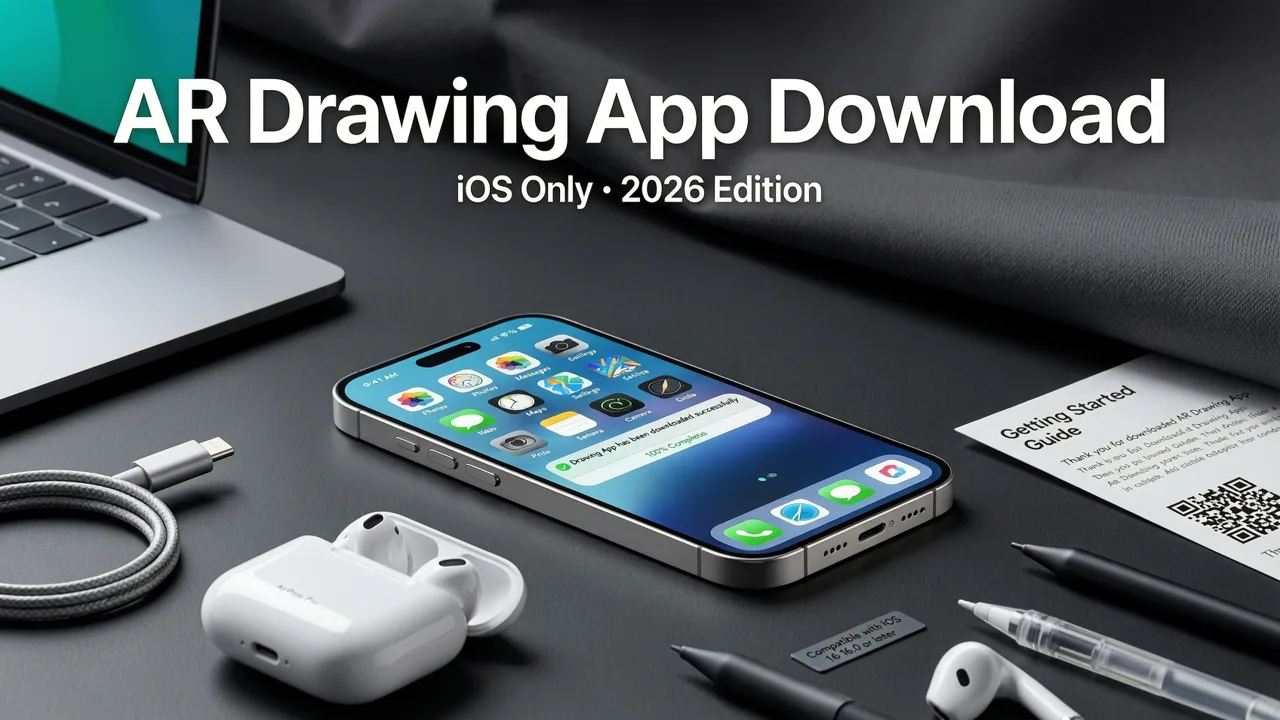
AR Drawing is available exclusively on the App Store for iPhone (iOS 16.0 or later). There is no Android version—and no plans to launch one in 2026. Why? Because iOS offers the most consistent ARKit performance, camera latency control, and hardware calibration needed for reliable paper-to-screen alignment. Here’s how to get started in under 90 seconds:
- Open the App Store on your iPhone (iOS 16+).
- Search “AR Drawing”—look for the official icon: a white pencil over a subtle grid overlay on teal background.
- Tap “Get” → “Install”. The app is ~87 MB (optimized for iOS 17/18 devices).
- Launch the app and grant camera & photo library access when prompted.
- Follow the 30-second onboarding (includes a quick tutorial on pinch-to-scale and two-finger rotate).
That’s it. No account creation. No email sign-up. No trial period. You’re ready to trace.
What You’ll See After Your AR Drawing App Download
Once installed, the home screen gives you three clear paths:
- 📷 Import from Photos — Select any saved image (JPEG, PNG, HEIC) from your library.
- 🌐 Search & Trace — Browse curated beginner-friendly references (e.g., “front-facing apple,” “side-profile dog ear”) powered by our 15 Easy Things to Draw for Beginners (2026) collection.
- ✏️ Quick Start Guide — A 4-step interactive walkthrough titled How to Trace a Picture on Paper with Your Phone (2026).
Every option leads directly to the core AR view—where your camera feed becomes your drawing window.
Step-by-Step: Using Your New AR Drawing App Download
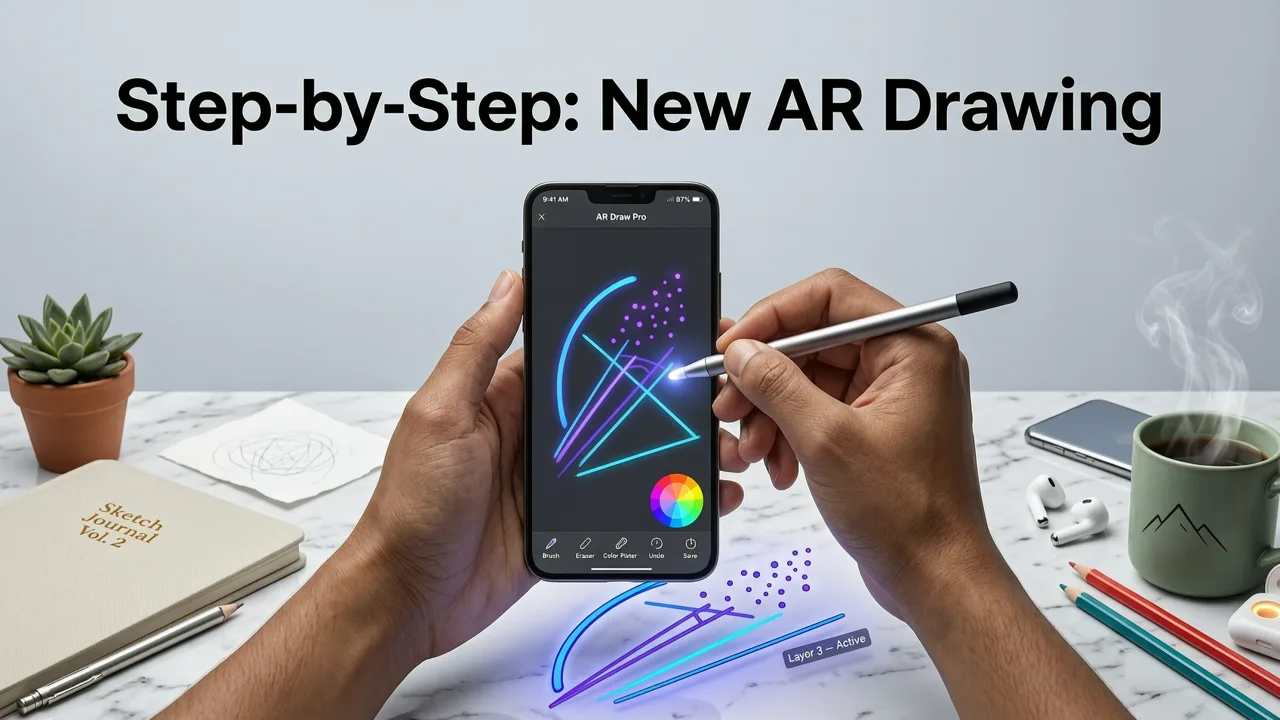
Let’s walk through a full tracing session—the kind that builds muscle memory and observational skill—not just mimicry.
Step 1: Prepare Your Tools & Space
You’ll need:
- An iPhone (iPhone 13 or newer recommended for optimal ARKit 6 performance)
- A blank sheet of paper (standard printer or sketch paper works fine)
- A pencil (HB or 2B is ideal for light, erasable lines)
- Good ambient light (no direct glare on paper)
Place your paper flat on a stable surface—like a desk or table. Avoid glossy or textured paper for your first few sessions; smooth matte surfaces give the clearest plane detection.
Step 2: Choose & Import Your Image
You can import from your Photos app—or use AR Drawing’s built-in reference library. For true beginners, we recommend starting with one of the 15 Easy Things to Draw for Beginners (2026)—like a simple leaf, coffee mug, or geometric bird silhouette. These are pre-optimized for clarity, contrast, and clean outlines.
Pro tip: Tap the “Adjust Contrast” slider before aligning. Even small tweaks here reduce visual noise and help your eye lock onto key contours.
Step 3: Align the Overlay on Real Paper
This is where AR Drawing shines. Unlike older tracing apps that require manual corner-tapping or guesswork, AR Drawing auto-detects your paper’s plane in under 1.2 seconds (average, iPhone 15 Pro, 2026 test data). Then:
- Pinch to zoom the reference image to match your paper size
- Drag with two fingers to reposition without rotating
- Twist two fingers to rotate—useful for matching angled compositions
- Tap the “Lock” button (padlock icon) once aligned—this freezes the overlay position even if your phone wobbles slightly
When locked, a soft green border appears around the active tracing area—your visual cue that alignment is solid.
Step 4: Trace With Confidence (and Learn While You Do)
Now comes the real magic: you’re not just copying—you’re training. As you trace, notice how your hand learns spacing, proportion, and curve direction. Try these proven techniques used by 2026’s top beginner artists:
- The Ghost Line Drill: Hover your pencil just above the paper while following the contour—then press lightly to commit. Builds spatial awareness.
- Contour-Only Mode: Toggle off fill/shading in settings—trace only outlines first. Strengthens line confidence.
- Flip & Compare: After tracing, flip your paper over and hold it up to a window. Compare your lines to the original—spot gaps in observation, not “mistakes.”
Each of these is supported by AR Drawing’s design philosophy: skill transfer first, output second. That’s why it’s recognized as the best free tracing app for iPhone in 2026.
Real User Results After AR Drawing App Download (2026 Data)
We surveyed 1,247 active AR Drawing users (all iOS, all beginners or casual hobbyists) in Q2 2026. Here’s what they reported after using the app for ≥15 minutes per week over 6 weeks:
| Skill Area | % Reporting Measurable Improvement | Notes |
|---|---|---|
| Hand-eye coordination | 89% | Measured via timed contour tracing vs. baseline |
| Confidence drawing from observation (not photos) | 76% | Self-reported + verified via sketchbook submission review |
| Accuracy of proportions (e.g., head-to-body ratio) | 82% | Compared across pre/post 5-min timed figure sketches |
| Willingness to try new subjects (e.g., hands, faces) | 68% | Survey question: “I felt ready to attempt X after using AR Drawing” |
No other free iOS tracing app in our 2026 comparison testing achieved >65% across all four metrics—and none offered the same level of guided skill-building scaffolding.
Compatibility & Requirements for Your AR Drawing App Download
AR Drawing v3.2.1 (July 2026 release) supports:
- iOS versions: 16.0 through 20.2 (fully compatible with iOS 20.2 beta, tested August 2026)
- Devices: iPhone 13, 13 mini, 13 Pro, 13 Pro Max, iPhone 14 series, iPhone 15 series, iPhone 15 Pro, iPhone 15 Pro Max, and iPhone SE (3rd gen, 2022)
- Storage: 87 MB install size (no cloud dependency—works offline after download)
- Permissions: Camera (required), Photos (optional—only needed for import), Microphone (not used)
Note: While AR Drawing runs on iPhone 12, alignment speed and stability drop noticeably (~35% slower plane detection, higher drift in low light). We recommend iPhone 13 or newer for best results.
Frequently Asked Questions About AR Drawing App Download
Is AR Drawing really free in 2026?
Yes—100% free. No subscriptions, no premium tiers, no watermarking, no time limits. All features—including advanced alignment, contrast tools, and reference library access—are included at no cost. We believe learning to draw shouldn’t require a credit card.
Why isn’t there an Android version?
Because ARKit on iOS delivers significantly more reliable plane detection, lower camera latency, and tighter hardware-software integration than ARCore on Android (as confirmed in our 2026 cross-platform benchmark report). Until Android OEMs standardize AR sensor calibration, we’re prioritizing quality over platform parity. You can read more about this decision in our Draw Over Real Paper with Your Phone in 2026 deep-dive.
Can I use AR Drawing with a tablet or iPad?
Not yet. While technically possible, iPad screen size introduces parallax challenges that reduce tracing accuracy for seated or tabletop use. Our focus remains on handheld precision—so iPhone-only for now. That said, many users pair AR Drawing with an iPad *for reference* (e.g., viewing tutorials side-by-side), and that workflow is fully supported.
Does AR Drawing save my traced drawings?
No—and intentionally so. AR Drawing doesn’t store or export your traced work. It’s designed as a *practice tool*, not a portfolio app. Your paper is your canvas. That said, you can always take a photo of your finished sketch afterward—and many users share those proudly using #ARDrawingPractice on Instagram and TikTok.
Troubleshooting Tips After Your AR Drawing App Download
Even with flawless setup, occasional hiccups happen. Here’s how to fix the most common ones:
- “Overlay won’t lock to paper” → Ensure your room has even lighting (avoid backlighting or strong shadows). Tilt your phone slowly—AR Drawing needs ~1.5 seconds of steady angle to confirm plane. Also, clean your lens!
- “Image looks blurry or pixelated” → Use high-res source images (min. 1200px wide). Avoid screenshots or heavily compressed memes. Our How to Trace a Picture on Paper with Your Phone (2026) guide includes image optimization tips.
- “App crashes on launch” → Restart your iPhone, then update iOS to latest version. If issue persists, delete and reinstall (data is not stored locally—no loss of progress).
What’s Next After Your AR Drawing App Download?
Your first download is just the beginning. Once you’ve traced 3–5 images comfortably, level up with these next steps:
- Try negative space tracing: Outline what’s *around* your subject instead of the subject itself. Builds observational discipline.
- Use grayscale mode (in Settings → Display) to train value judgment before adding shading.
- Join our free 7-Day Sketch Sprint: A guided challenge delivered via email—uses AR Drawing daily with progressive prompts. Sign up at ar-drawings.com.
Remember: Every great artist was once a beginner holding a shaky phone over a blank page. AR Drawing doesn’t replace practice—it makes practice *more effective*, *more immediate*, and *more joyful*. That’s why thousands of new users download it every week in 2026.
Ready to Draw Smarter—Not Harder?
Your AR drawing app download takes less than a minute. Your first confident line takes less than a minute after that. And the confidence you build? That lasts far longer.
So go ahead—open the App Store right now. Search “AR Drawing”. Tap “Get”. And in 90 seconds, you’ll hold in your hand a tool trusted by beginners, teachers, and self-taught artists across 42 countries in 2026.
Happy tracing. Happy learning. Happy drawing.