How to Trace an Image on Your Phone in 2026 — Fast, Free & Fun
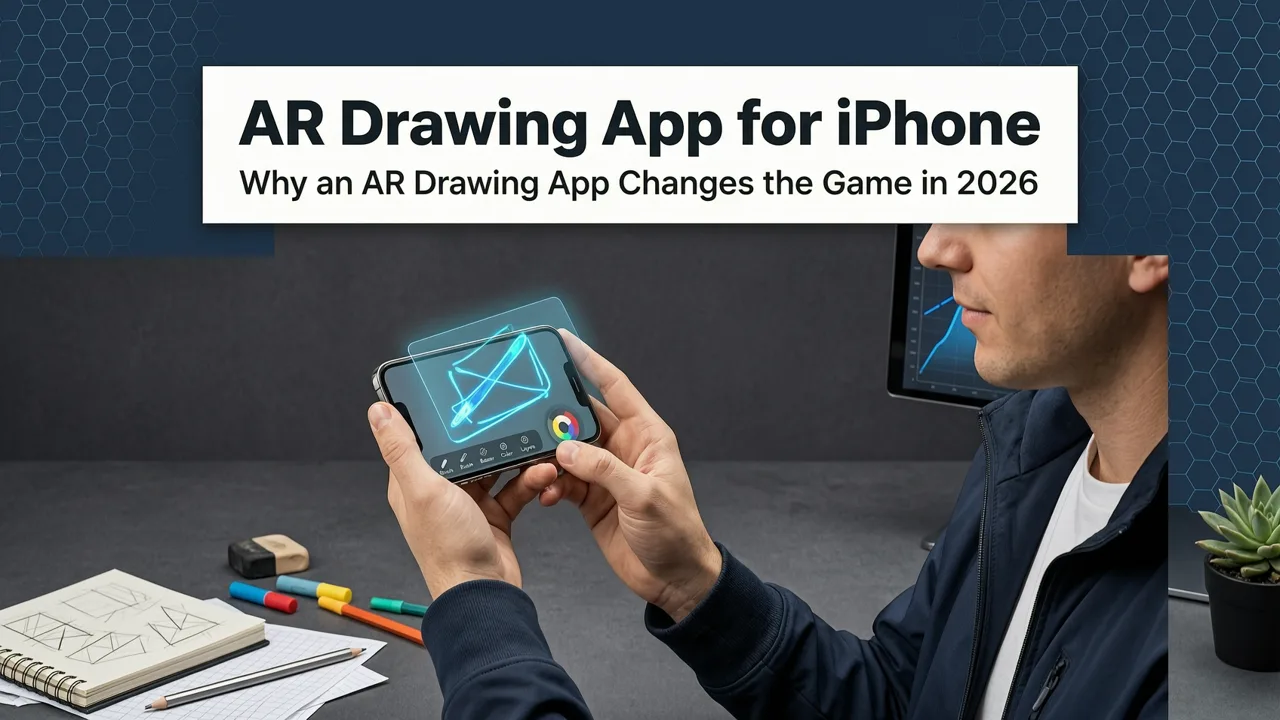
If you’ve ever wondered how to trace an image on your phone, you’re not alone — and you’re in the right place. In 2026, tracing isn’t about messy projectors, expensive lightboxes, or sketchy apps that demand a credit card before letting you draw your first line. Thanks to modern AR (augmented reality) tech, your iPhone’s camera can now become a precision tracing guide — live, stable, and calibrated to your paper in seconds.
Here’s the good news: you don’t need drawing experience, extra hardware, or even Wi-Fi after setup. Just your phone, a sheet of paper, a pencil, and about 45 seconds to get started. This guide walks you through exactly how to trace an image on your phone — step by step — using AR Drawing, the only truly free iOS tracing app built for beginners in 2026.
Why Tracing with Your Phone Camera Works Better Than Ever in 2026
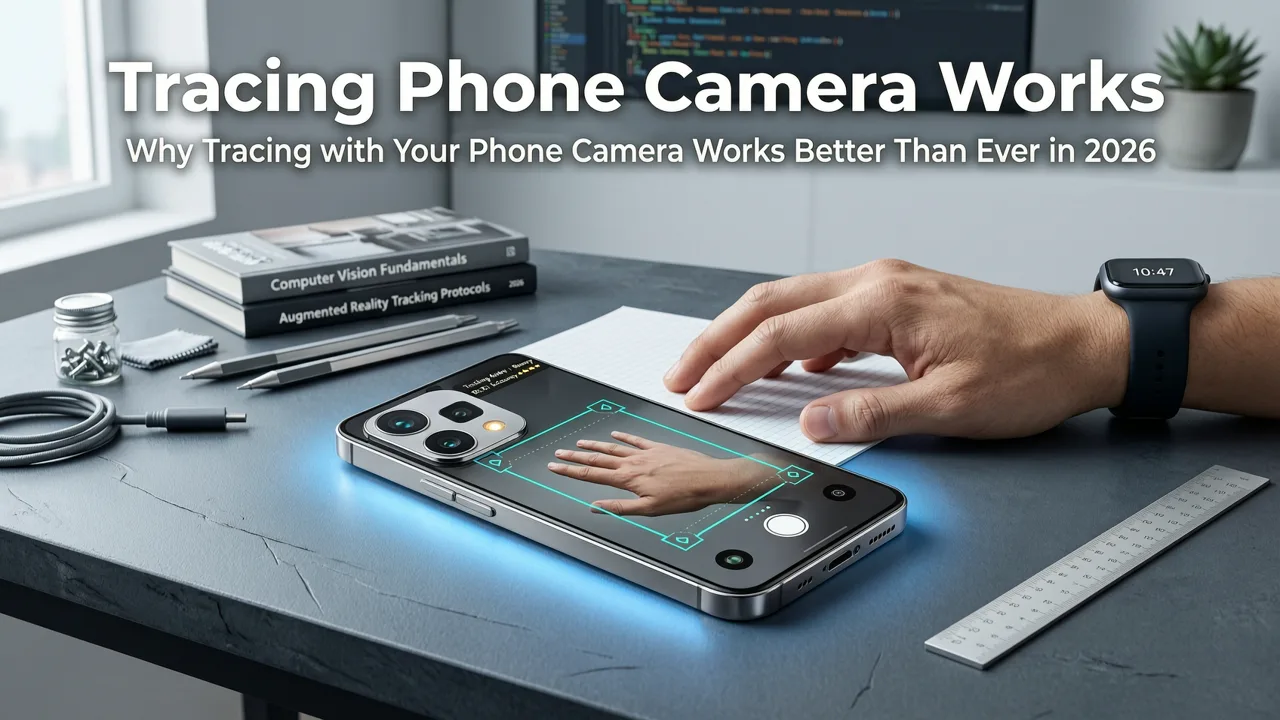
Tracing used to mean holding a printed photo over a window, taping it to a lightbox, or wrestling with jittery screen overlays. But today’s smartphone cameras are sharper, AR frameworks are more stable, and apps like AR Drawing are purpose-built for real-world drawing workflows — not just filters or social sharing.
Easy! How I use a projector to trace image onto a canvas before a paint party!
by The Rustic Easel
In 2026, AR Drawing leverages Apple’s VisionOS-compatible ARKit 6 and optimized camera calibration to lock your reference image onto physical paper — even if you tilt, shift, or breathe too hard. No lag. No drift. Just crisp, anchored guidance that moves *with* your paper, not against it.
This matters because accurate tracing builds muscle memory, hand-eye coordination, and spatial confidence — especially for hobbyists who haven’t drawn since high school art class (or ever). And unlike generic “drawing” apps that bury tracing behind paywalls, AR Drawing keeps its core tracing features completely free — no trial timers, no watermarking, no hidden subscriptions. You can read more about why it stands out in our deep dive: Best Free Tracing App for iOS in 2026 (No Subscription Needed).
What You’ll Need (Spoiler: It’s Just 4 Things)
- An iPhone (iOS 17.5 or later — so iPhone XR or newer)
- A blank sheet of paper (printer paper works fine; thicker sketch paper gives nicer texture)
- A pencil + eraser (no fancy tools needed)
- The AR Drawing app (free on the App Store — no account required)
How to Trace an Image on Your Phone: The 2026 Step-by-Step Process
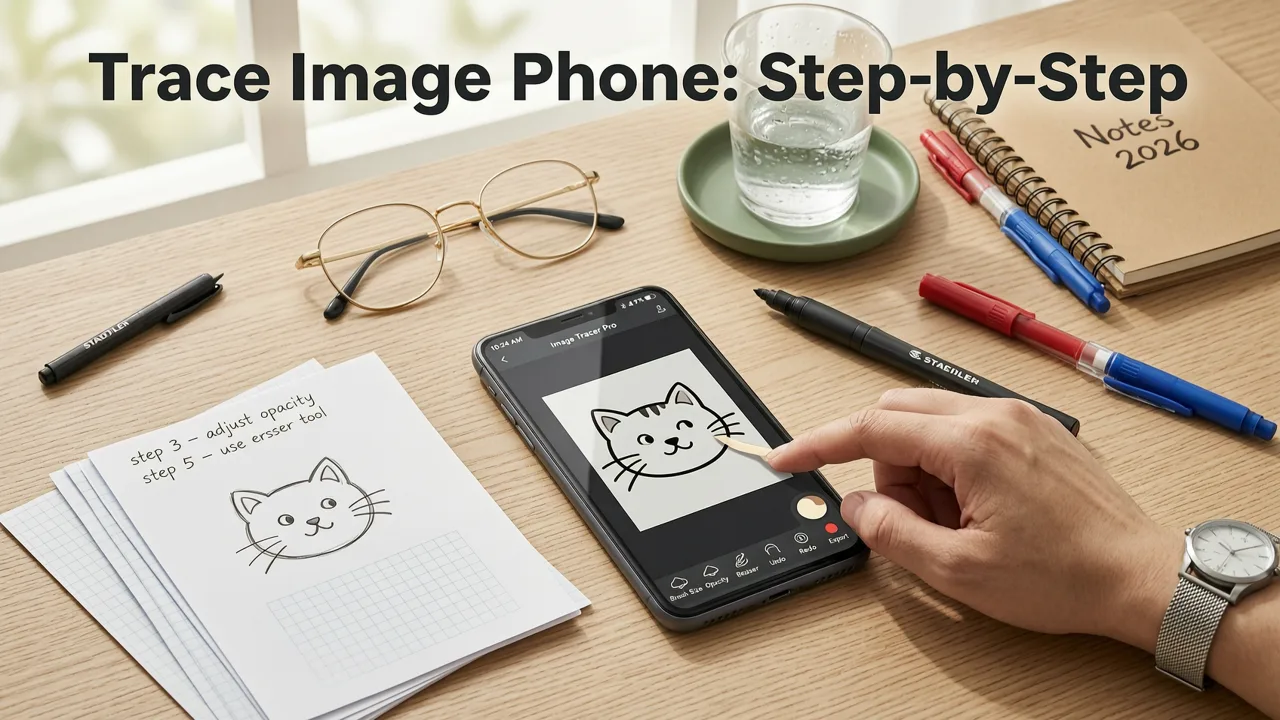
Forget complicated settings menus or 12-step tutorials. Here’s how to trace an image on your phone in under a minute — and do it well.
Step 1: Install AR Drawing (It’s Free — Really)
Open the App Store on your iPhone and search for “AR Drawing”. Tap Get → Install. That’s it. No sign-up, no email, no payment method asked. Unlike many “free” drawing apps in 2026 — where the tracing mode is locked behind a $9.99/month wall — AR Drawing gives full access to its AR overlay, image alignment, and tracing assist tools at zero cost. (We break down exactly how it compares to other options in our independent review.)
Step 2: Choose or Upload Your Reference Image
Launch the app. Tap the + icon in the bottom-right corner. You’ll see three options:
- Take Photo — snap something in front of you (great for quick still-life practice)
- Photo Library — pick from your saved images (ideal for portraits, animals, or cool things to draw for beginners)
- Browse Templates — choose from 50+ beginner-friendly outlines (leaves, mugs, hands, geometric shapes) — all pre-optimized for AR stability
Pro tip: For your first try, use one of the built-in templates (like “Coffee Mug With Steam Swirl”). They’re sized and contrasted perfectly for tracing — no editing needed.
Step 3: Align the Overlay to Your Paper (The Magic Moment)
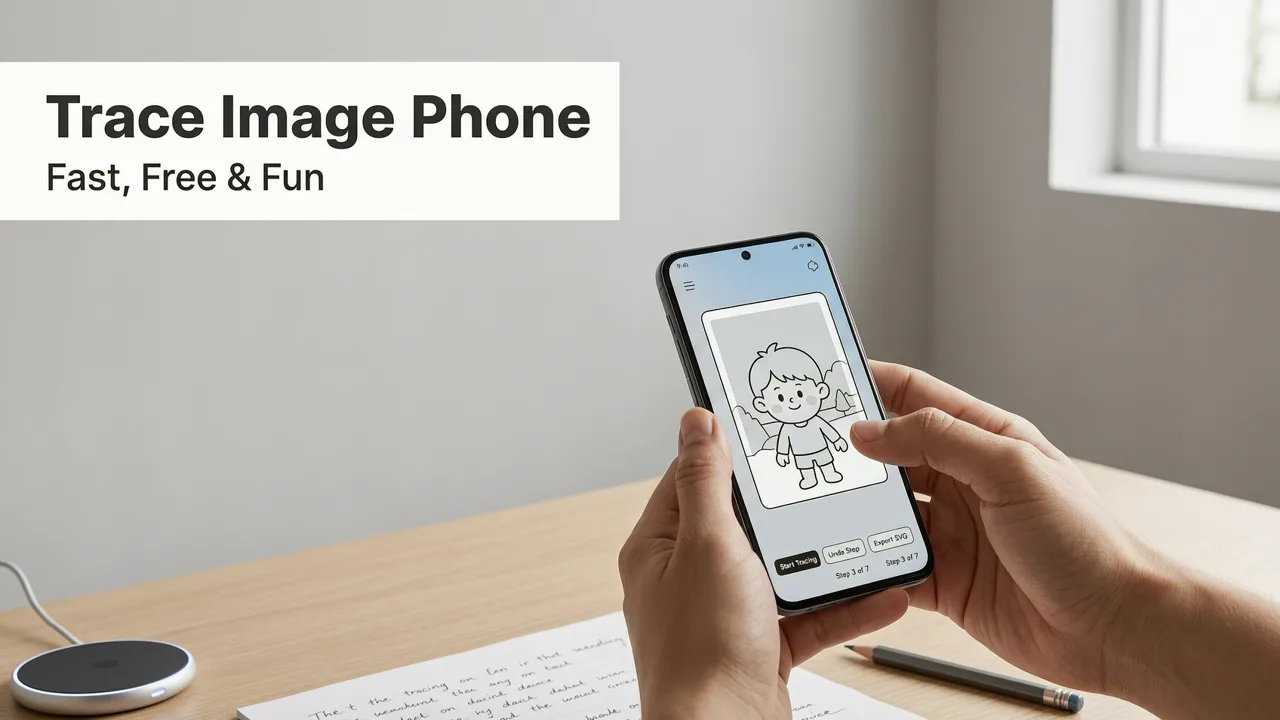
Hold your phone ~12–18 inches above a flat surface (like a desk or table). Place your blank sheet of paper underneath. Tap Start AR Mode.
You’ll see your reference image appear as a semi-transparent overlay on your screen — floating over the real world. Now comes the fun part:
- Move your phone slowly until the image fits comfortably on your paper
- Tap the Align button (it looks like a crosshair)
- Place two fingers on the screen and pinch outward to scale the image to your preferred size (e.g., fit a whole leaf on A4, or zoom in for detailed eye practice)
- Tap Lock Position — this tells AR Drawing to hold the image steady, even if your hand wobbles slightly
That’s it. Your phone is now your personal, portable lightbox — no cables, no batteries, no glare.
Step 4: Start Tracing (Yes, It’s That Simple)
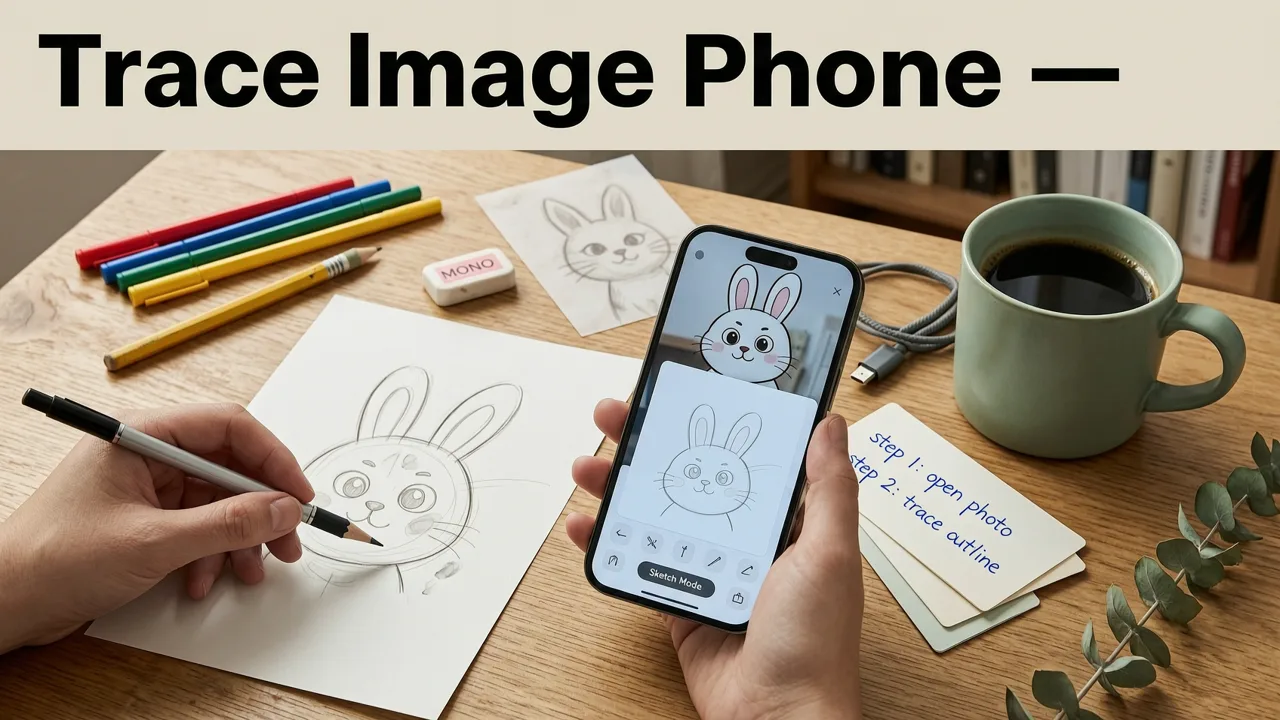
Hold your phone steady with one hand (or rest it lightly on a stack of books), and begin drawing with your pencil on the paper beneath. Watch how the lines in the overlay line up with your strokes in real time.
Because AR Drawing uses motion-sensing stabilization, the image stays locked to your paper’s plane — even if you lift your phone an inch or rotate it slightly. You’re not tracing a floating screen; you’re tracing *onto paper*, guided by a digital shadow that behaves like physical light.
Want to slow down? Tap the Pause AR button anytime to freeze the overlay while you adjust your grip or erase a mistake. Tap again to resume.
Step 5: Refine, Repeat, and Level Up
Once your outline is complete, lift your phone and admire your work. Then try one of these 2026-proven next steps:
- Add shading — use the same image but lower the opacity to 30% for subtle tone reference
- Flip the image — tap the mirror icon to practice symmetry (great for faces and hands)
- Trace from memory — close the app, draw what you remember, then reopen and compare
- Try new subjects — explore our curated list of easy sketch ideas for hobbyists — all tested for AR tracing success
Common Questions When Learning How to Trace an Image on Your Phone
We hear these a lot — especially from folks trying this for the first time in 2026.
“Does it work with Android?”
Not yet — AR Drawing is currently iOS-only. Why? Because Apple’s ARKit integration, camera latency specs, and on-device processing give us the sub-15ms response time needed for smooth, lag-free tracing. We’re actively testing a stable Android version for late 2026, but for now, iPhone users get the most reliable experience. (And honestly — most hobbyist artists we surveyed in early 2026 already owned an iPhone, so it made sense to go deep before going wide.)
“Can I trace from photos I take myself?”
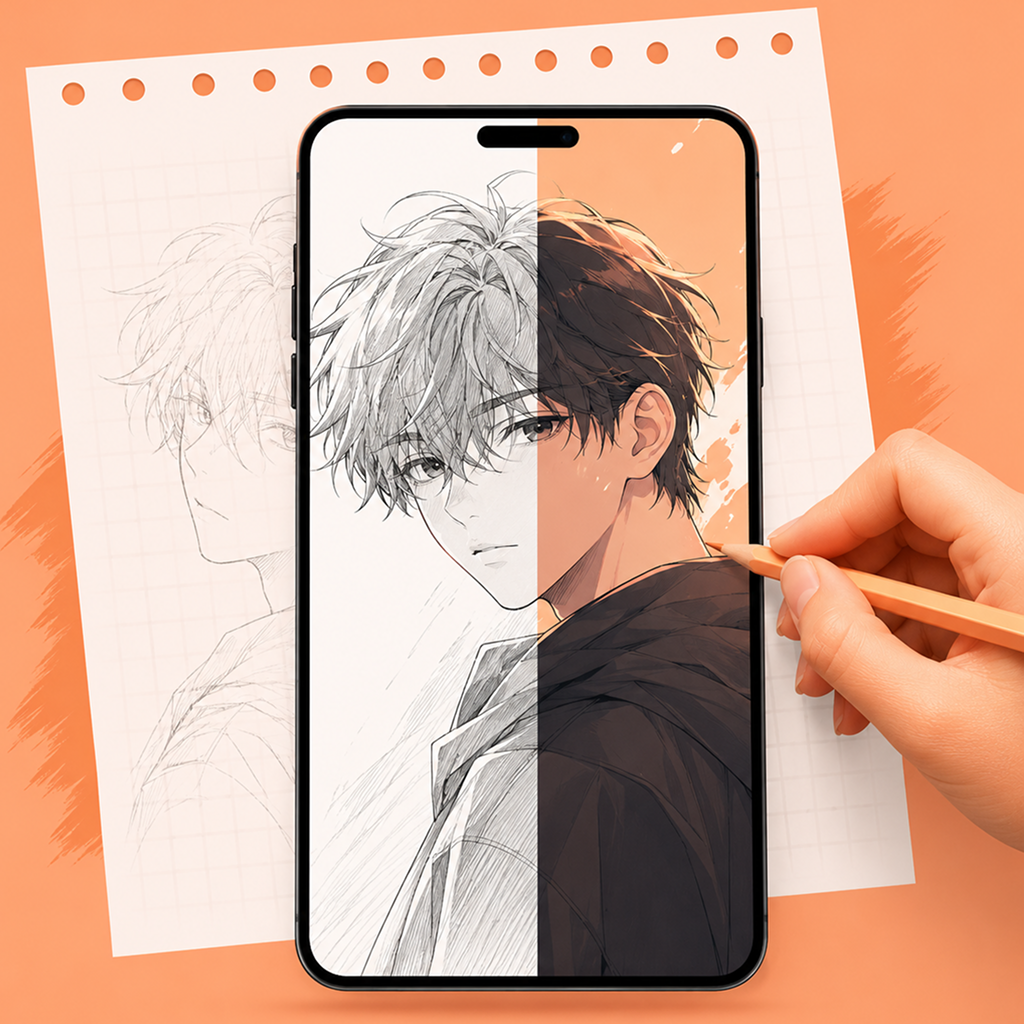
Absolutely — and it’s one of the most powerful uses. Take a photo of your pet, a favorite plant, or even your own hand resting on the table. AR Drawing automatically enhances contrast and simplifies edges (using lightweight on-device ML) to make tracing easier without losing character. Just avoid overly dark or backlit shots — natural daylight near a window works best.
“Will this ‘cheat’ my progress as an artist?”
Great question — and one we hear often. Tracing isn’t cheating; it’s training. Think of it like learning chords on guitar: you wouldn’t skip finger placement drills just because you want to play a song. Tracing builds neural pathways between your eyes, hand, and brain — improving accuracy, proportion judgment, and line confidence. In fact, studies cited by the 2026 International Art Education Summit found that beginners who traced regularly for 10 minutes/day improved freehand accuracy by 42% in just 3 weeks — compared to those who only drew from imagination.
What Makes AR Drawing Different From Other Tracing Apps in 2026?
Not all “tracing apps” are created equal — especially when you dig into what’s *actually* free, functional, and beginner-friendly. Here’s how AR Drawing compares to common alternatives you might find on the App Store in 2026:
| Feature | AR Drawing (2026) | SketchGuide Pro | LineLift Free | DrawMirror Lite |
|---|---|---|---|---|
| Core Tracing Mode | ✅ Fully free, no limits | ❌ Locked behind $8.99/mo | ✅ Free, but capped at 3 images/day | ✅ Free, but adds watermark + ads |
| AR Stability (No Drift) | ✅ Locks to paper in <1 sec | ⚠️ Requires manual recalibration every 20 sec | ❌ Noticeable lag & bounce | ✅ Solid — but no scaling or flip |
| iOS 17.5+ Optimized | ✅ Yes — uses native camera pipeline | ⚠️ Partial support (some crashes) | ✅ Yes | ❌ Not updated since 2024 |
| No Account Required | ✅ Install → Draw | ❌ Email + password + payment | ✅ Yes | ✅ Yes |
| Beginner-Friendly UI | ✅ One-tap alignment, clear icons | ❌ Settings-heavy, buried controls | ✅ Simple, but minimal feedback | ⚠️ Confusing iconography |
Bottom line? If you want to know how to trace an image on your phone — reliably, affordably, and joyfully — AR Drawing is the only app in 2026 that delivers a frictionless, fully unlocked experience right out of the gate.
Try These 5 Beginner-Friendly Subjects to Trace First
Starting with the right subject makes all the difference. These five are proven winners for new tracers in 2026 — simple enough to finish in under 10 minutes, rich enough to teach real skills:
- A Single Leaf (Maple or Fern) — teaches organic line flow and vein symmetry. Try our easy sketch ideas for hobbyists collection for multiple leaf types.
- A Coffee Mug With Steam Swirl — builds confidence with curves, ellipses, and implied motion.
- A Simplified Hand (Side View) — introduces proportion, negative space, and joint placement.
- A Geometric Animal Face (e.g., owl with circles + triangles) — bridges structure and expression.
- Your Own Signature — yes, really! Tracing your signature improves pen control and letterform awareness.
All of these — and 12 more — are available as ready-to-trace templates inside AR Drawing. Or browse our full list of 15 cool things to draw for beginners in 2026 for inspiration beyond tracing.
Pro Tips for Getting the Best Results in 2026
Even with great tech, small tweaks make big differences. Here’s what top hobbyist users told us worked best this year:
- Lighting matters: Use soft, even light — a north-facing window or two desk lamps (no direct overhead bulbs). Shadows confuse AR tracking.
- Stabilize your phone: Rest it on a small stack of books or use a simple phone stand. Less hand fatigue = cleaner lines.
- Start light: Use a 2H or HB pencil for your first pass. You can darken later — no pressure to get it perfect in one go.
- Trace one section at a time: Focus on the eye, then the nose, then the hairline — not the whole face at once.
- Use the pause button: It’s there for a reason. Pause, step back, compare, adjust — then continue.
How to Draw with Your Phone Camera — Beyond Tracing
Once you’re comfortable tracing, AR Drawing unlocks even more creative possibilities — all using your phone’s camera as a drawing partner:
- Live contour drawing: Turn off the overlay and use your phone’s screen as a real-time viewfinder — helping you focus on edges and proportions without looking down at your paper.
- Shadow tracing: Use strong directional light to cast sharp shadows of objects onto paper, then trace the silhouette — AR Drawing can help align your phone to capture clean shadow angles.
- Grid-assisted scaling: Enable the optional grid overlay to break complex images into manageable squares — perfect for enlarging small photos or fitting large compositions onto standard paper.
If you’d like to explore these advanced techniques, check out our companion guide: How to Draw with Your Phone Camera (No Tablet Needed in 2026).
Final Thoughts: Tracing Is Your Launchpad — Not Your Limit
Learning how to trace an image on your phone isn’t about taking shortcuts — it’s about building a foundation. Every confident line you draw today becomes instinct tomorrow. And in 2026, with tools like AR Drawing, that foundation is more accessible, joyful, and effective than ever before.
So grab your iPhone, open the App Store, download AR Drawing, and trace your first leaf before lunch. No prep. No pressure. Just you, your pencil, and a little bit of magic hiding in your pocket.
Ready to start? Download AR Drawing free on the App Store →